以下是创建 Microsoft 365 Word 和 Excel 中表格和图表的步骤(2025年7月)。有关使用 Microsoft Word 和 Excel 的步骤,请参阅 表格和图表(Microsoft Word,Excel)
Tables (Google Docs, Sheets)
要在 Google Docs 中创建表格:
- 打开 Google Chrome。
- 点击
空白文档. - 点击 文件 > 重命名, dan beri nama fail anda. Perhatikan bahawa Google Docs menyimpan fail anda; tiada butang Simpan untuk diklik.
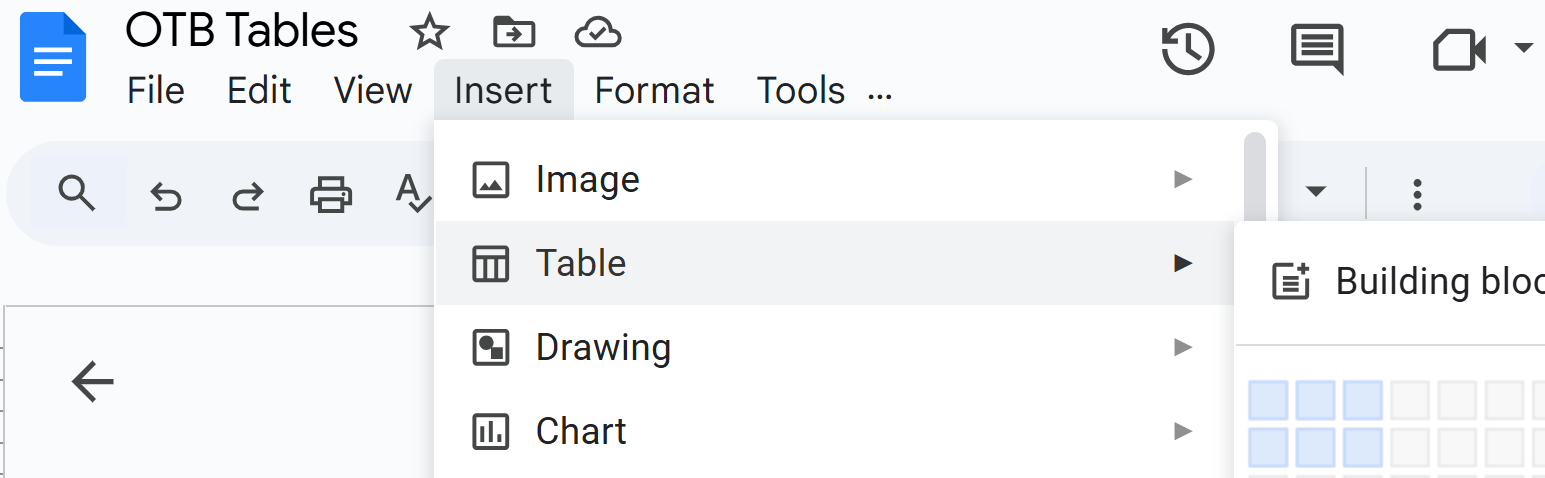
- 点击 插入 > 表格 和选择你的表格的行和列:
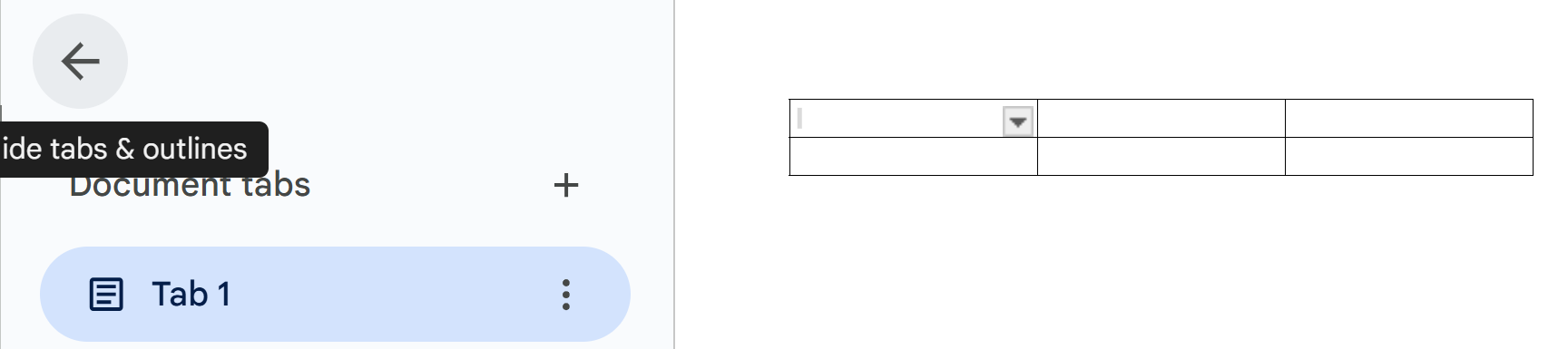
- 要腾出一些屏幕空间,请点击标签区域中的左箭头:
- 要给这个表格命名,先把光标放在第一行的一个单元格内,然后点击 Format > Tabel > Tajuk baris. 你可以改变标题的大小:例如,点击 Heading 2 and change to 字幕.
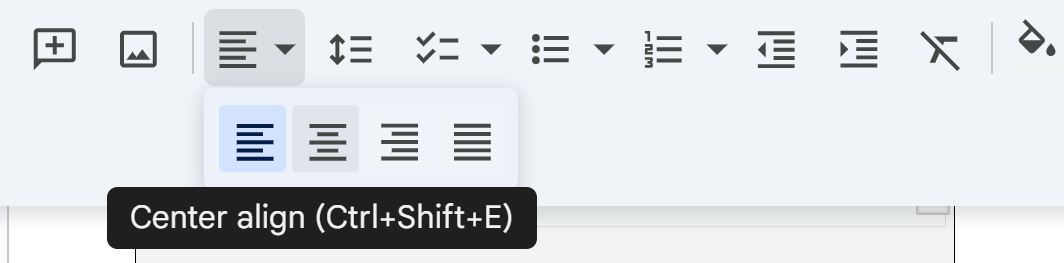
- 要更改对齐方式,例如,居中,点击字体空白右侧的 3 个点(默认情况下, Arial), dan pilih penjajaran yang anda mahu:
- 要添加或删除行和列,点击 Format > 表格.
- 要给一行的背景上色,点击该行的所有单元格,然后点击工具栏上的油漆桶:
注意这个工具栏的其他功能:例如, A 让你可以更改选定文本的颜色。铅笔图标让你可以更改选定文本的背景颜色。
格式用于具有分组或细分行和列的表格。 注意到表格标题是 atas 桌子。传统上,表格的标题放在表格的顶部或是表格的第一行。如果表格的内容显而易见,并且不需要在报告的其他地方交叉引用该表格,可以省略标题。
关于表格的具体样式和格式指引,请记住以下几点:
- Refer to the table in the text before the table. The data in the table is important because it highlights key trends and patterns that can help readers understand the subject better. It provides a clear overview of the main points, making it easier to grasp the implications of the information presented. By analyzing the data, one can draw meaningful conclusions and insights that are relevant to the overall topic discussed.
- Don’t overwhelm readers with huge 11-column, 30-row tables! Simplify the table data to just what illustrates your point — without distorting that data.
- 不要在每个单元格中放单位缩写。例如,在一个全是以毫米为单位的测量列中,不要在每个数字后面加“mm”。在列或行的标题中放缩写即可。
- 对齐数值在列中,右对齐或小数对齐。如果123和4在同一列,4会正好在3的下面,而不是1的下面。
- 通常,列中的文字是左对齐的(虽然你偶尔会看到所有文字居中的列)。
- Column headings are centered above the columns of numerical data (forming a T-shape); left-aligned with columns of text. The alignment of column headings to the actual columnar data can vary. If you have a column of two- or three-letter words, you would likely want to tengah 该数据上方的列标题,即使是文字而不是数字。 (这样做可以避免出现奇怪的L形列。)
- 当你需要对表格中的一个或多个项目提出特别说明时,使用脚注,而不是让表格的信息显得杂乱。
生产表格。 通常,您会借用信息,其中有一个好的表格。如果它是一个简单的表格,没有太多行和列,请自己重新输入到您的文档中(但请记得在图表标题中注明您借用的来源)。然而,如果它是一个大型表格,包含大量数据,您可以合理地扫描、截图或复印它,并以这种方式将其带入您的报告中。
如果你用 OpenOffice、Word 或 WordPerfect,习惯使用生成表格的工具。你不用画线条和其他格式细节。
偶尔,在粗略草稿的技术报告中,信息以常规的连贯文本形式呈现,但用表格(或表格形式)呈现会更好。务必回头检查你的粗略草稿,看看哪些内容可以转变为表格。
格式用于表格。 留意把文本转换成表格的机会,就像这个例子。图表和图形(Google Docs)
Chart dan graph sebenarnya hanyalah cara lain untuk menyampaikan data yang sama yang dipersembahkan dalam jadual—walaupun dengan cara yang lebih dramatik dan menarik. Pada masa yang sama, anda akan mendapat kurang butiran atau kurang ketepatan dalam chart atau graph berbanding dengan jadual. Bayangkan perbezaan antara jadual angka jualan untuk tempoh sepuluh tahun dan graph garis untuk data yang sama. Anda dapat merasakan trend keseluruhan dengan lebih baik dalam chart atau graph tetapi tidak dengan butiran tepat yang ditunjukkan dalam jadual.
-->Charts (Google Docs, Sheets)
派图
一个饼图展示了一个项目与其所属整体之间的关系。例如,想象一个饼图显示美国汽车销售,其中饼块代表国产车、欧洲车、日本车等等。
要在 Google Sheets 中创建一个简单的饼图:
- 打开谷歌浏览器。
- 点击
然后 Kain. - 点击 空白电子表格.
- 请移到B列第3行,然后制作一个看起来像这样的电子表格:

- Select the spreadsheet data you have just entered—semua.
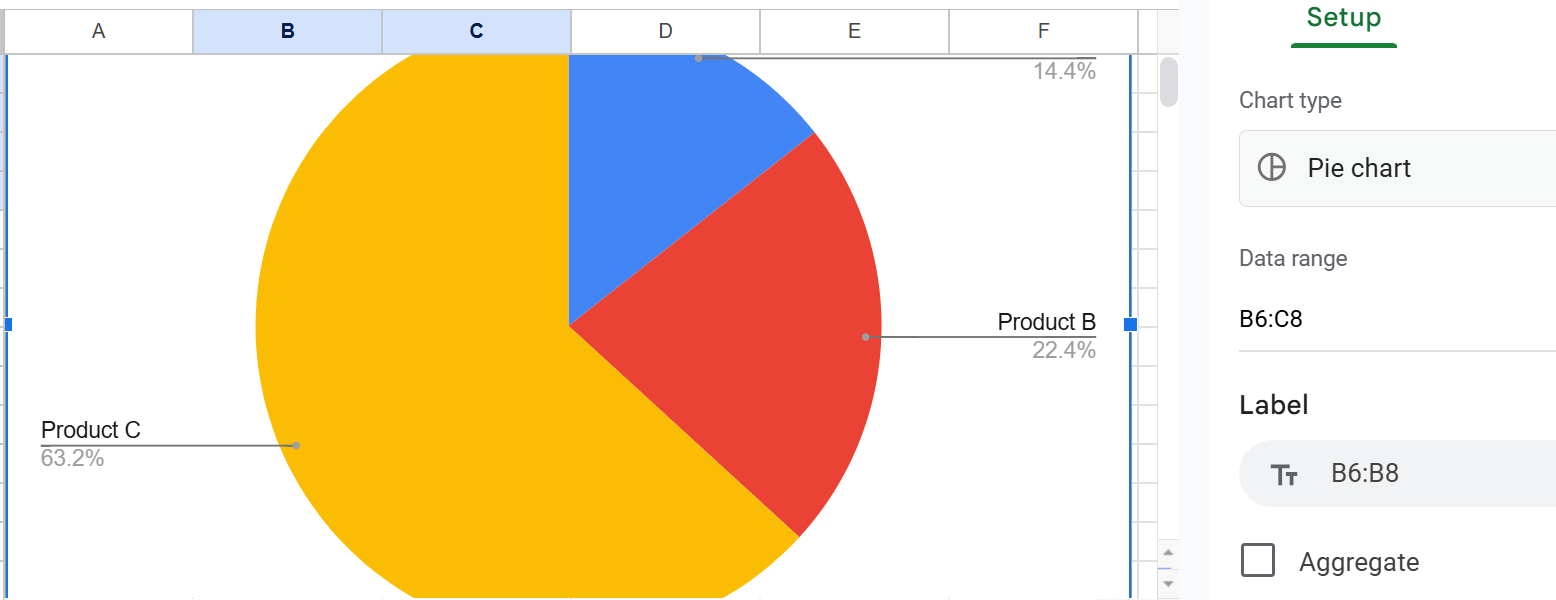
- Click 插入>图表>饼图:

- 点击饼图右侧的区域,以探索如何自定义此饼图的外观。
- 要在文档中使用此饼图,请单击饼图区域中的任意位置,然后单击 Edit>Salinan.
- 请将您的饼图粘贴到文档中。
条形图和柱形图
一张柱状图(横向条形图)或列状图(纵向条形图)显示了项目之间的关系,以便进行直接比较。例如,想象一下,一张柱状图显示美国汽车的国内销售,与非美国汽车的销售并排展示。
要在 Google Sheets 中创建条形图:
- 再一次,打开Google Chrome。
- Click
然后 床单. - Klik 空白电子表格.
- 移动到 B 列第 3 行,并创建一个看起来像这样的电子表格:

- 选择你刚刚输入的电子表格数据—全部。
- 如果你刚刚创建了一个饼图,Google Sheets 会很乐意为你创建并显示另一个。只需选择并按 删除.
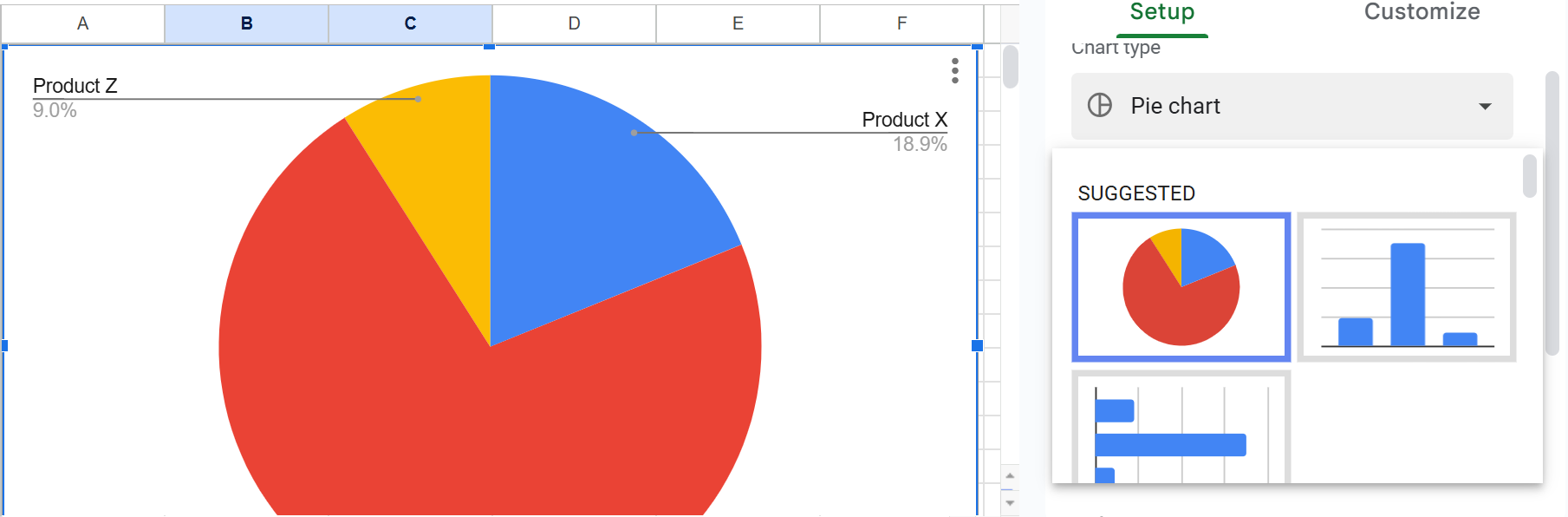
- 点击饼图旁边的向下箭头,查看您可用的柱状图选项:

- 点击电子表格右侧的柱状图或条形图:

- 要在文档中使用此柱状图,请单击柱状图区域的任意位置,然后单击 Edit>Copy.
- 将你的柱状图粘贴到文档中。
折线图
一条线图显示了两个或更多项目随时间的变化。例如,想象一条线图,其中一条线显示美国汽车销量的变化,而另一条线则显示非美国汽车销量的变化。
要在 Google Sheets 中创建简单的折线图:
跟着这个视频: 在 Google Sheets 中创建折线图
标题, 轴标签, 键, 来源引用, 交叉引用
- 图表标题(说明文字)—对于大多数图表,包含一个标题,在许多情况下,需要一个编号标题。标记图形或表格的标准规则是:如果你在文本中其他地方交叉引用该图形或表格。
- 要编辑线图的标题,例如,点击 自定义 > 图表 > 轴标题, dan masukkan tajuk di bawah teks Tajuk:

- 轴标签—Indicate what the x and y axes represent.
- Kunci (lagenda)— Indicate what special color, shading, or line style (solid or dashed) means. Include them in a key (a box) in some unused space in the chart or graph.
- 交叉引用— Let’s link the chart or graph to the related text. In the cross-reference, describe what the graphic shows, how to read it, and outline its key trends.
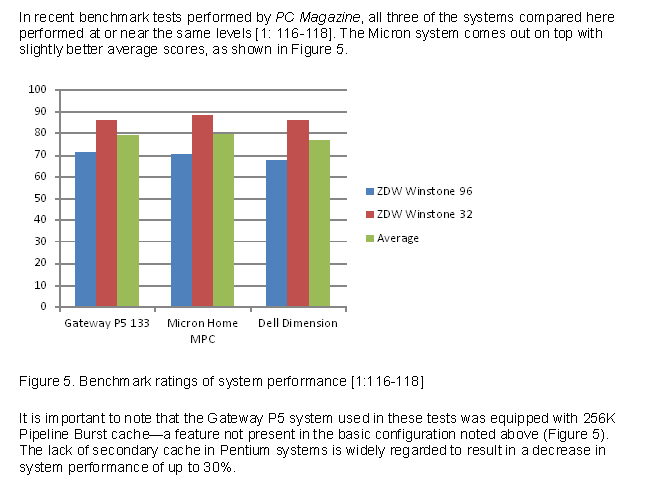
柱状图示例。 注意到图表上下的文字引起了人们对图表的关注,并简要说明了其重要性。- 要添加 y 轴标签,请点击 Tajuk paksi menegak dan taip dalam ruangan teks Tajuk.
可能你的线图像这样:

解释性交叉参考图表和图形
You cannot just throw in a figure or a table and say "See Figure 1" or "See Table 1." That's inconsiderate and a missed opportunity for technical communication. Include a brief explanation before or after about what to focus on in the chart or graph. For instance, highlight one main point or trend.
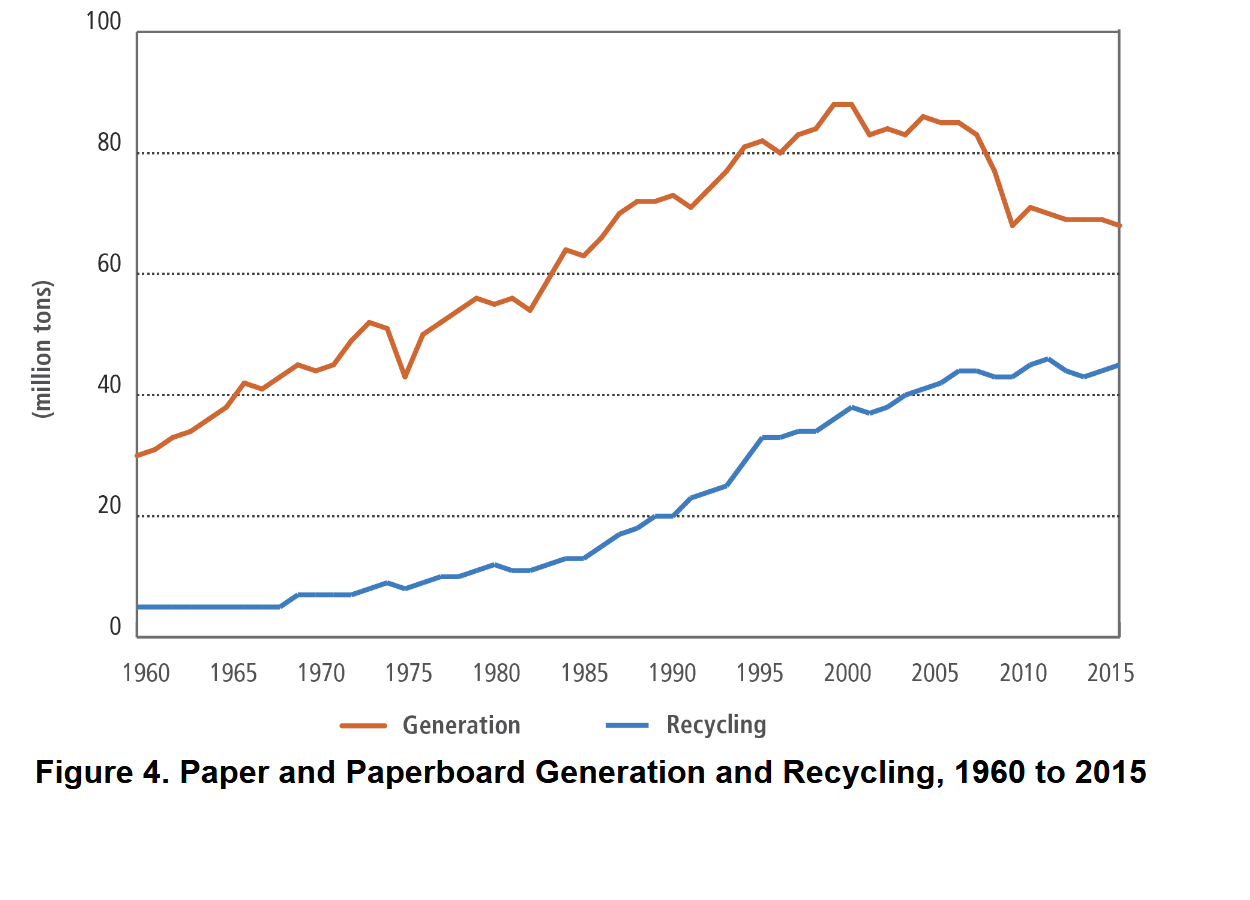
如图4所示,从1960年到2015年,生成的纸张材料以6730百万吨超过了回收的纸张材料的4760百万吨。
这里是另一个说明性交叉引用的例子:
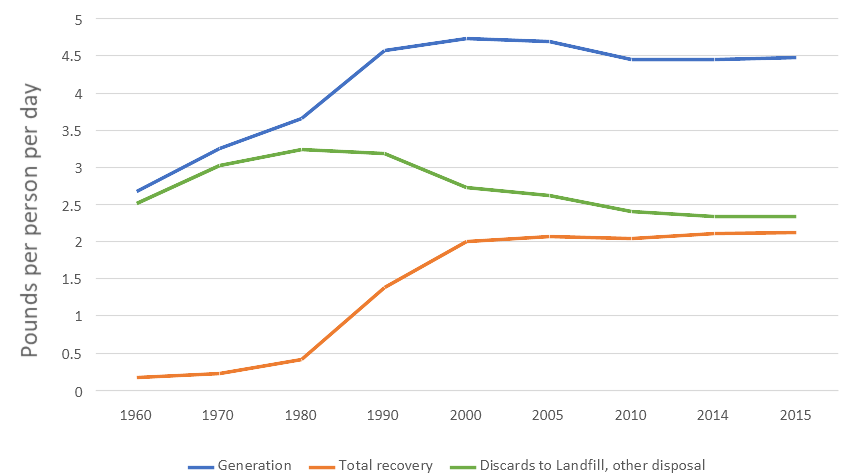
图6. 每人每日生活垃圾磅数
如上图所示,市政固体废物(MSW)的回收进展在2000年前不断增加,但自那时起便停滞不前。
保存图表以便其他应用程序使用
Google Docs 让你可以把文件下载到你的电脑:
- 点击 文件.
- 点击 下载.
- 选择 Microsoft Word (.docx) 或你喜欢的任何格式。
相关信息
几乎所有你想知道的制作表格和图形的知识. 一项来自缅因州路易斯顿贝茨学院生物学系的出色资源,2012年。
图表和图形. Universiti North Carolina di Chapel Hill
如何在MS Word中创建表格或图表 显示表格格式前 3:35,之后创建图表。
#17 Excel 365 教程 高级 - 将 Excel 图表链接到 Word 文档
这里有一些资源,定义了许多存在的图表类型:
- 40+ Carta Jenis | Panduan Ke Cerita Data (+ Contoh)
- 数据可视化—如何选择合适的图表类型?
- 每种图表类型排名—该使用什么,避免什么
- AI 图表生成器. AI基础的网站,生成图表—免费!
I would appreciate your thoughts, reactions, and feedback regarding this chapter: Sure! Please provide the text you'd like me to translate.—David McMurrey.

图表示例。 Please provide the full text you would like translated. figura 标题放在图表下方。Don't forget to credit the source of any information you used. ????